
Guide on CAMIS Revenue Payment for Company Registration Fee in Nepal
The CAMIS (Company and Intellectual Property Office Management System) portal is the official digital platform used by Nepal’s Office of the Company Registrar (OCR) for all company registration and post-registration activities. One of the most critical steps in this process is paying the required revenue (Rajaswa) fees. This guide will walk you through the entire process of paying revenue on the CAMIS portal, ensuring your documents move forward without delays.
For business owners in Nepal, learning how to use the CAMIS portal’s payment section is a key skill to have. Whether you’re registering a new company completing post-registration activities, timely revenue payment is mandatory for document processing. Until you complete the revenue payment, your documents cannot proceed to the next stage. This tutorial covers everything you need to know about accessing the payment section, generating vouchers, and completing payments through various methods.
Quick Navigation
What is CAMIS Portal?
The CAMIS portal is the centralized digital platform developed by Nepal’s Office of the Company Registrar to streamline company registration and post-registration services. This system has replaced traditional paper-based registration methods and allows business owners to submit documents, track application status, and complete payments online from their home or office. The platform supports both Nepali and English languages, making it accessible to a wider user base across Nepal.
The CAMIS system requires mandatory revenue (Rajaswa) payments at various stages of company registration and post-registration activities. These payments are processed through the integrated payment gateway system within the portal, ensuring secure and transparent transactions. The revenue fees cover various services including registration processing, document verification, and official certification costs.
Step 1: Initial Login and Portal Access
Accessing the CAMIS Portal
To begin the revenue payment process, you first need to log in to the CAMIS portal using your credentials:
- Visit the official CAMIS portal website at https://camis.ocr.gov.np
- Enter your registered username in the login field
- Enter your password that you used during the document submission
- Click the login button to access your dashboard
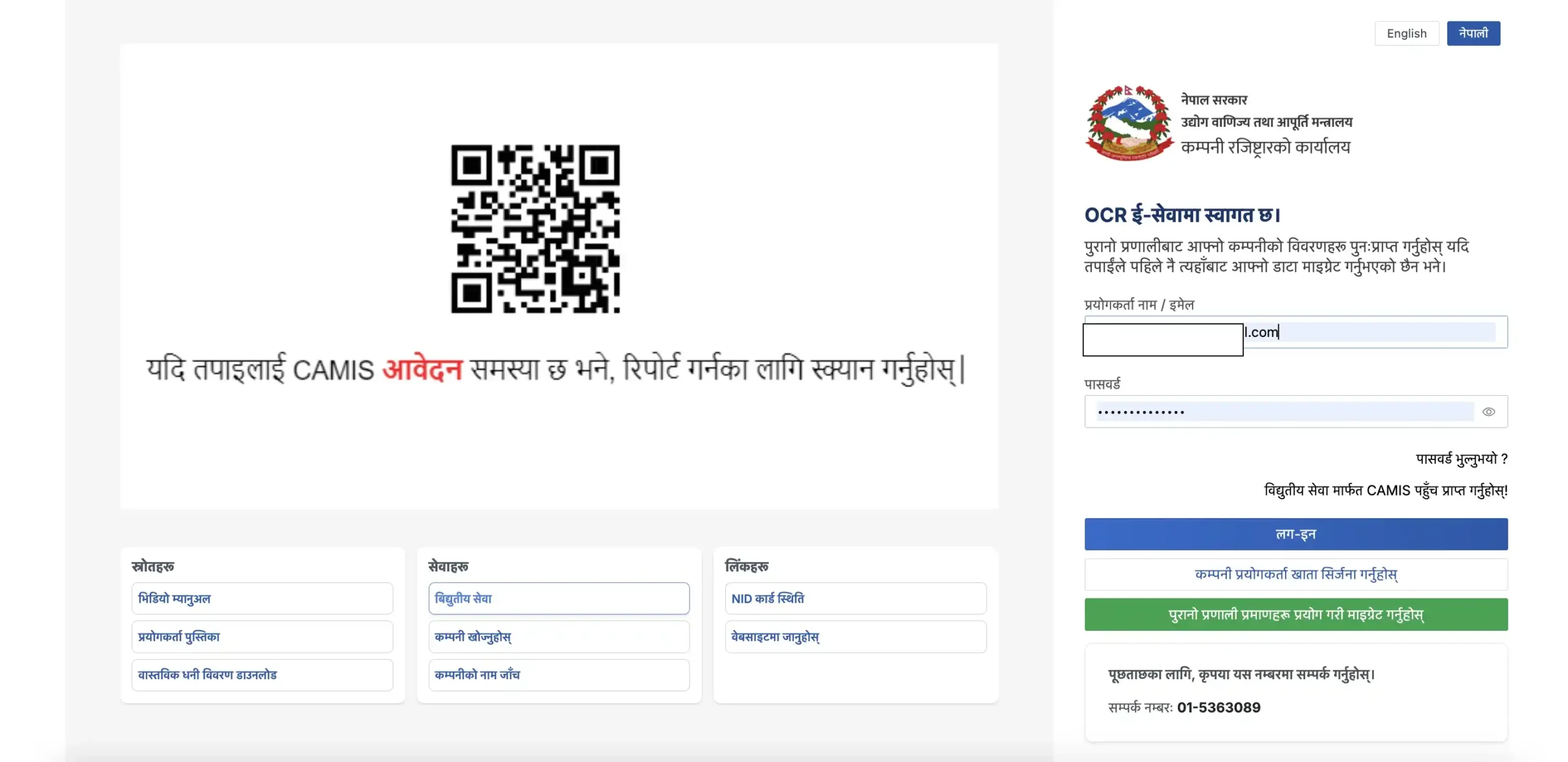
Important Login Information
Make sure you use the exact username and password combination that you provided during your initial company registration or post-registration document submission. If you have forgotten your credentials, you can use the “Forgot Password” option to reset your account access. Keep your login information secure and never share it with unauthorized persons.
Language Settings
The CAMIS portal supports both Nepali and English interfaces. If you’re more comfortable working in English, you can easily change the language settings:
- Look for the language changer option in the top-right corner of the screen
- Select “English” from the dropdown menu to switch from Nepali
- The entire portal interface will update to English, including all menu items and notifications
This language feature ensures that non-Nepali speakers can navigate the portal smoothly and understand all payment requirements and instructions clearly.
Step 2: Understanding the Revenue Section (जरिवाना र राजस्व)
Locating the Fine and Revenue Section
Once you’re logged into the CAMIS portal, the main dashboard displays several important sections. The “जरिवाना र राजस्व” section (which translates to “Fine and Revenue” in English) is prominently displayed at the top of your screen. This is where you’ll manage all your payment-related activities.
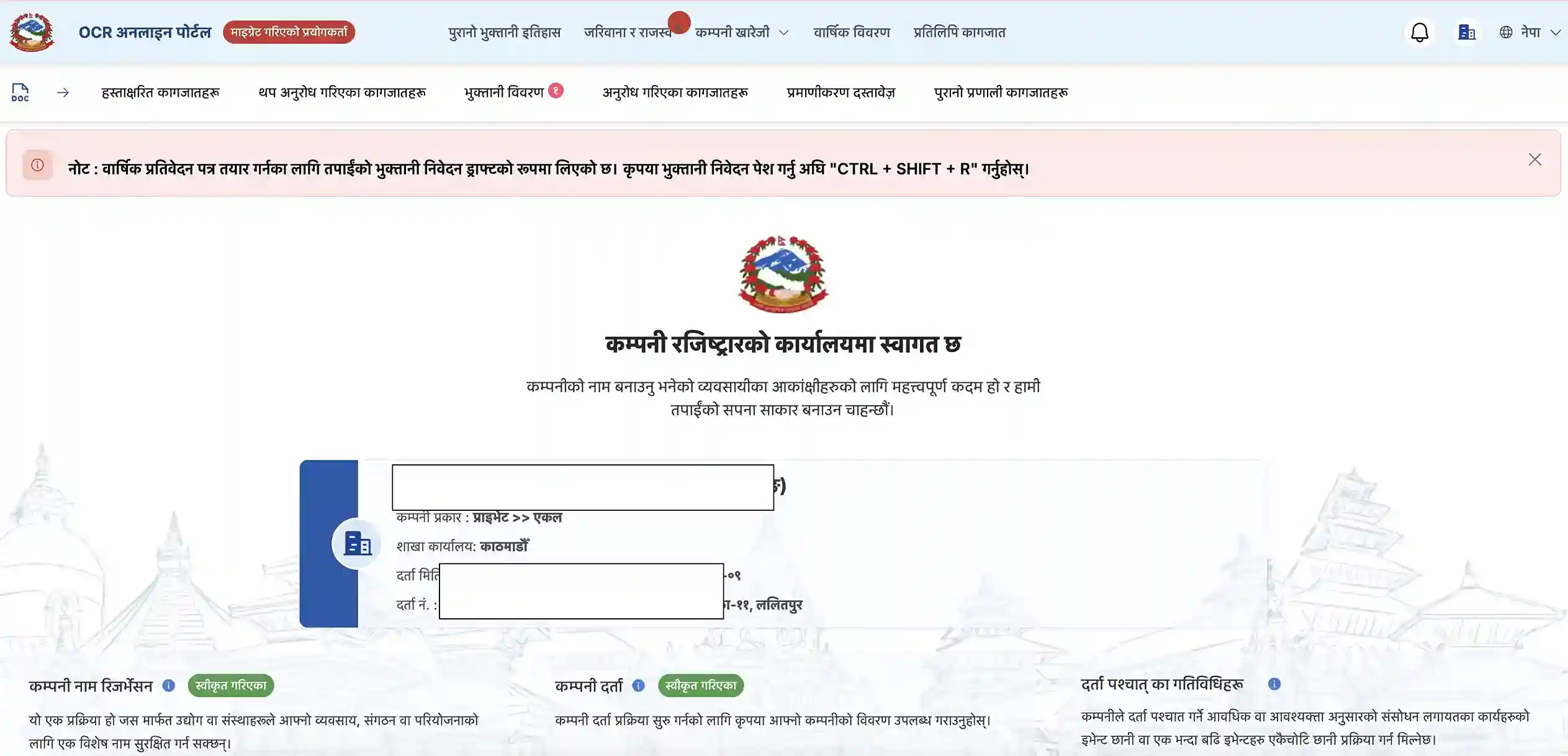
Understanding Revenue Notifications
The “जरिवाना र राजस्व” section features a red notification indicator that displays the number of payment vouchers that have been generated for your company. This red notification is designed to grab your attention and ensure you don’t miss important payment deadlines.
The notification will show you:
- The total number of pending vouchers
- The outstanding payment amounts
- The deadline for completing the payment (if applicable)
Why Revenue Payment is Critical
Revenue payment is not optional—it’s a mandatory requirement in the company registration and post-registration process. Until you complete the revenue payment, your documents cannot proceed to the next stage of processing, including digital signature and final approval. This is why the notification appears prominently and must be addressed immediately upon notification. Delaying payment can hold up your entire application indefinitely.
Step 3: Locating Your Payment Vouchers
Accessing the Voucher Section
To view and manage your payment vouchers:
- Click on the “जरिवाना र राजस्व” (Fine and Revenue) section at the top of your screen
- The system will display all vouchers generated for your company registration or post-registration activities
- Each voucher represents a specific payment obligation related to your company
Understanding Vouchers
A voucher is a digital payment authorization document that specifies the exact amount you need to pay and what it covers. The CAMIS system generates vouchers automatically when your application requires payment. Each voucher contains:
- A unique voucher number for identification and tracking
- The description of charges (e.g., registration fee, document processing fee)
- The exact amount due in Nepalese Rupees (NPR)
- The date the voucher was generated
- The deadline for payment
Multiple Vouchers
Depending on your company’s activities, you might have multiple vouchers for different services or fees. For example:
- Registration processing fee
- Document verification fee
- Post-registration service fees
- Amendment or modification fees
Make sure to pay all vouchers to ensure your documents are not held up in processing. You cannot selectively pay vouchers—all pending payments must be cleared.
Step 4: Viewing Voucher Details and Payment Amounts
Accessing the View Option
For each voucher displayed in the “जरिवाना र राजस्व” section:
- Click on the “View” button next to the voucher you need to pay
- The system will open the detailed voucher page with all relevant information
- Review all details carefully before proceeding with payment
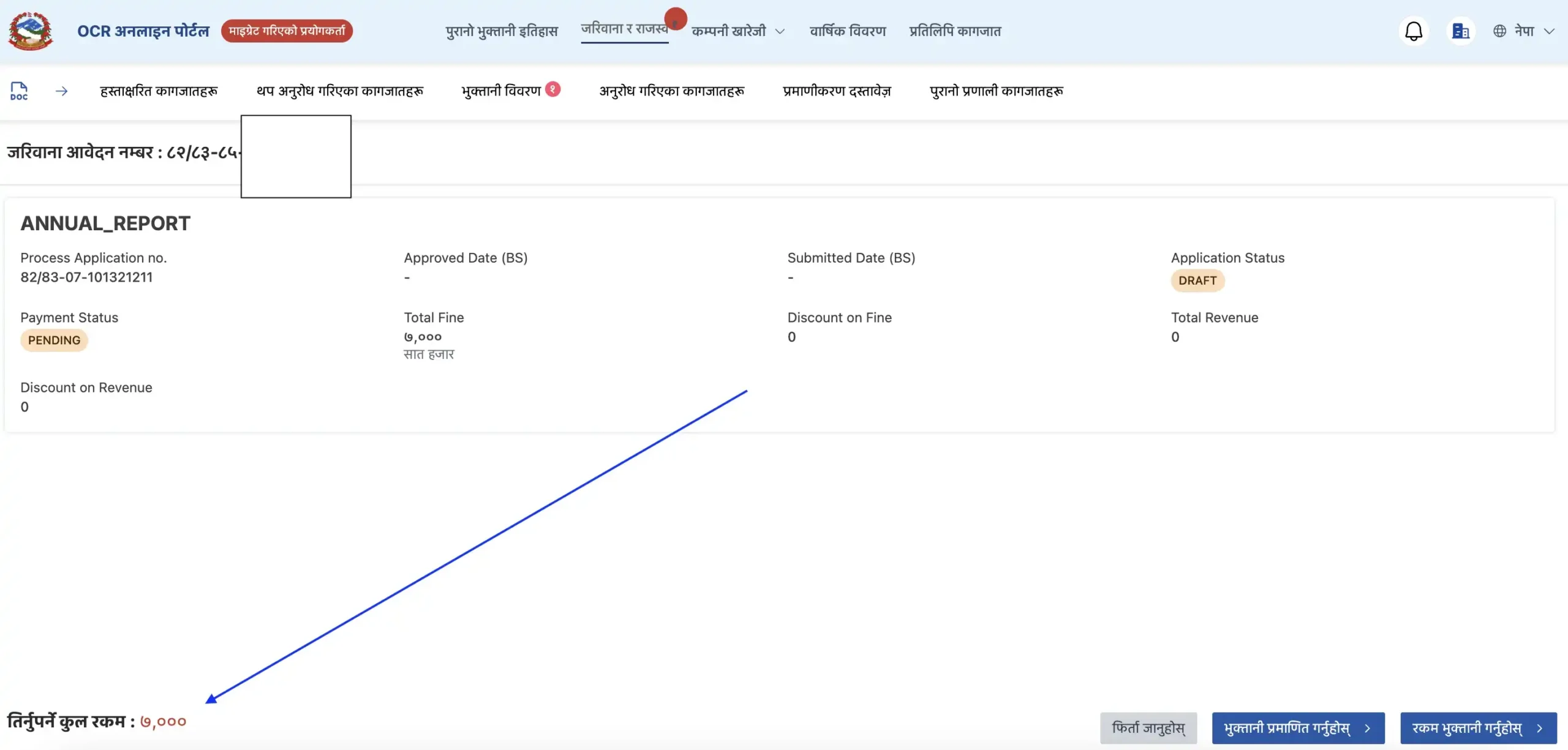
Understanding the Payment Page
When you click “View,” you’ll see:
- Complete voucher details including the unique reference number
- Itemized list of all charges included in this voucher
- The breakdown of different fees (registration fee, processing fee, etc.)
- The total amount to be paid clearly displayed at the bottom of the page
- Multiple payment action buttons to proceed with payment
Important Amount Information
The total amount shown at the bottom of the voucher page is the exact sum you must pay. Do not make partial payments—the system requires full payment of the complete amount to process your documents further. If you have multiple vouchers, you’ll need to pay each one in full separately or according to OCR instructions.
Step 5: Accepting Terms and Conditions
Initiating the Payment Process
At the bottom of the voucher details page, you’ll find the “रकम भुक्तानी गर्नुहोस्” button (which means “Pay the Amount” in English). Click this button to proceed with the payment process.
Self-Declaration Message
After clicking the payment button, a popup window will appear displaying a self-declaration message. This legal document contains:
- Terms and conditions of payment on the CAMIS system
- Your acknowledgment that you are making a legitimate payment
- Confirmation that the payment details are accurate and correct
- Legal disclaimers and acknowledgments regarding the transaction
- Privacy and data handling statements
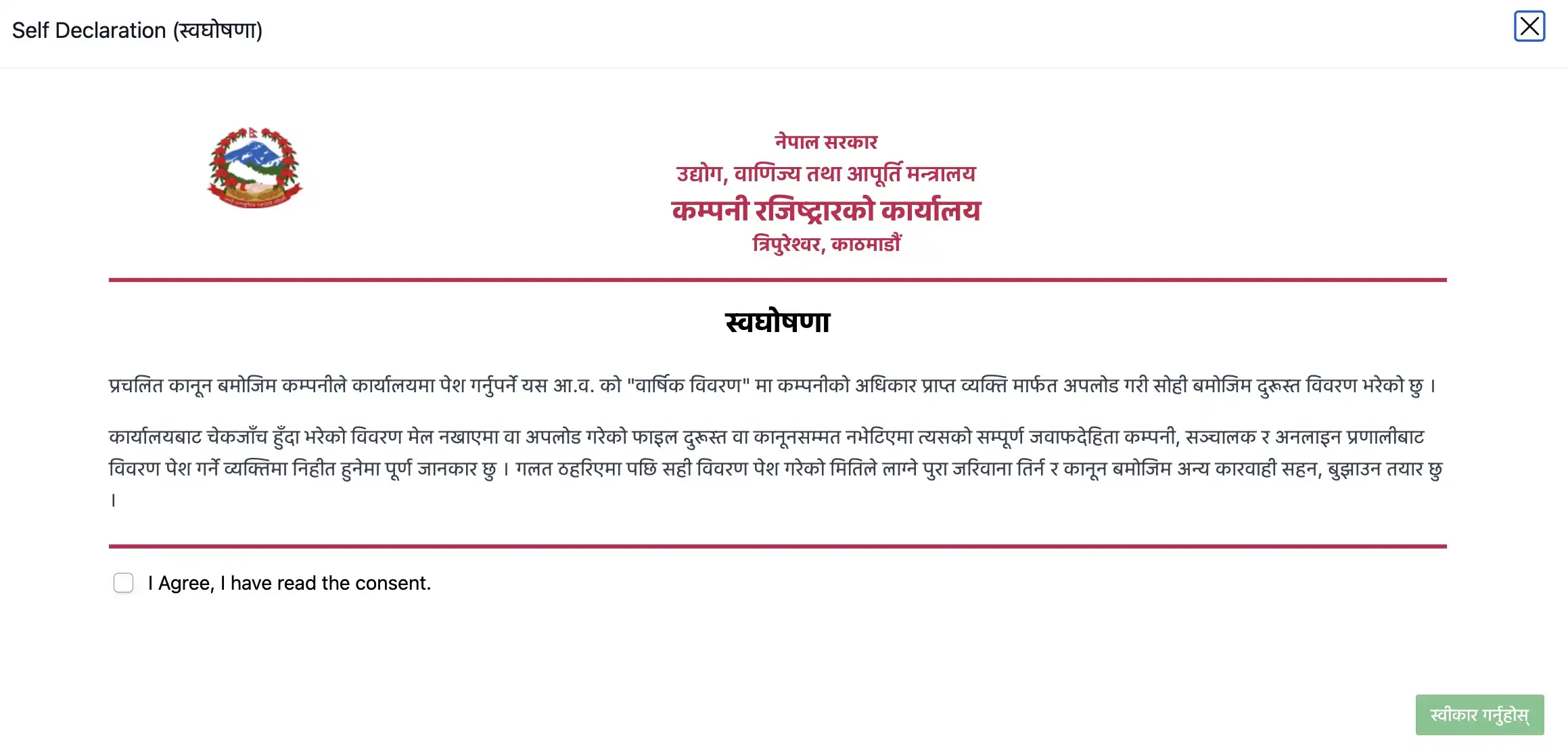
Accepting the Declaration
To proceed with payment, you must:
- Read the self-declaration message carefully from start to finish
- Locate the small checkbox at the bottom of the message
- Check the box to confirm that you:
- Understand the payment terms and conditions completely
- Accept all the terms stated in the declaration
- Confirm that all information is accurate and complete
- Only after checking this box can you proceed to the next step
Step 6: Choosing Your Payment Method
Available Payment Options
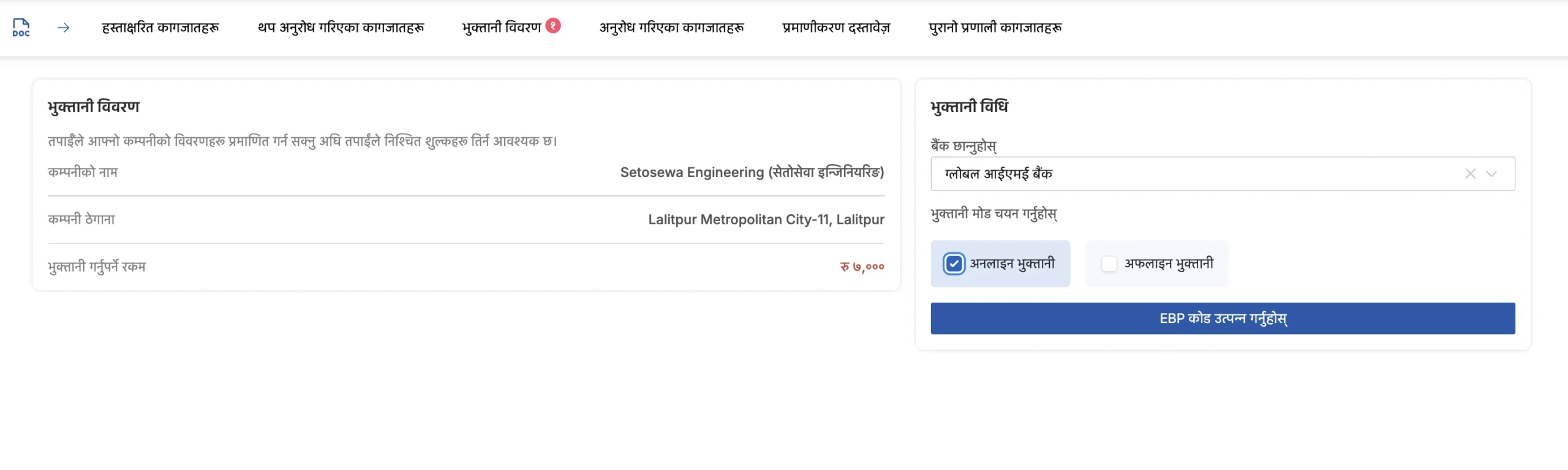
After accepting the self-declaration, the CAMIS system will present you with two payment methods:
- Online Payment (Recommended)
- Offline Payment (Bank Visit)
Online Payment Method (Recommended)
Online payment is the recommended method for completing your CAMIS revenue payment. Here are the key advantages:
- Instant Processing: Your payment is processed immediately upon completion
- Convenience: You can pay anytime, anywhere from your computer or mobile device
- No Physical Visits: No need to visit a bank in person
- Automatic Verification: The system automatically verifies your payment status
- Quick Document Processing: Your documents move to the next stage faster
- Digital Receipt: You receive an instant digital receipt for your records
- Security: All transactions are encrypted and secure through your bank
Offline Payment Method (Bank Visit)
Offline payment involves visiting a bank in person and paying through the counter:
- More time-consuming than online payment
- Requires a physical visit to a designated OCR-authorized bank
- Manual verification process may take longer
- Higher risk of payment delays due to manual processing
- Physical receipt from bank required for proof
✓ Recommendation: While offline payment is available, we strongly recommend using online payment for faster and more efficient processing of your company registration or post-registration documents. Online payment reduces the risk of delays and ensures your documents proceed to the next stage promptly.
Step 7: Online Payment Process
Selecting Online Payment
To choose the online payment method:
- Select the “Online Payment” option from the available payment methods
- Click on the “EBP Generation” button (EBP stands for Electronic Bill Presentment)
Bank Selection
After clicking the EBP Generation button, the system will present you with a list of available banks:
- Review the list of participating banks displayed on your screen
- Select your preferred bank from the list
- Different banks may offer different payment gateways and interfaces
Supported Banks and Payment Gateways
The CAMIS portal integrates with major banks and payment gateways in Nepal, including:
- Nepal Bank Limited (NBL)
- Rastriya Banijya Bank (RBB)
- Himalayan Bank Limited
- Nepal Investment Bank Limited (NIBL)
- Machhapuchre Bank Limited
- NIC Asia Bank Limited
- Standard Chartered Bank Nepal
- Nabil Bank Limited
- And other major financial institutions in Nepal
Completing the Online Payment
Once you select your bank and click the payment button:
- You’ll be redirected to your bank’s secure payment gateway
- Enter your online banking credentials or user ID
- Verify the payment amount and all transaction details
- Confirm the transaction on your bank’s system
- Enter any additional security codes or OTPs (One-Time Passwords) as required by your bank
- Complete the payment authorization
- Wait for confirmation from your bank
- You’ll receive a transaction confirmation page and unique reference number
Payment Confirmation
Keep a record of the following information after completing your payment:
- Transaction reference number or transaction ID
- Date and time of payment
- Amount paid
- Bank confirmation details and receipt number
- Screenshots of payment confirmation page
These details will be useful if you need to verify your payment status or troubleshoot any issues later.
Step 8: Offline Payment via Bank
When to Use Offline Payment
Offline payment is an alternative option if you:
- Don’t have online banking access activated on your account
- Prefer to pay in person and speak directly with bank staff
- Want a physical receipt from the bank
- Face issues with online payment
Offline Payment Process
If you choose offline payment, follow these steps:
- Note the voucher number and total amount from the CAMIS portal
- Visit any authorized bank branch that accepts CAMIS payments
- Provide the bank staff with your voucher details and company information
- Complete the payment in cash or through bank transfer as directed
- Request a bank receipt/acknowledgment with payment confirmation
- Save this receipt—you’ll need it for verification in the CAMIS portal
Time for Manual Processing
Offline payments require manual verification by OCR officials, which typically takes 24-48 hours. During this time, your document processing may be delayed compared to online payments. This is why online payment is recommended for faster processing.
Step 9: Verifying Payment Status
Returning to CAMIS Portal
After completing your payment (either online or offline):
- Return to the CAMIS portal at https://camis.ocr.gov.np
- Log in with your username and password if you’ve been logged out
- Navigate back to the “जरिवाना र राजस्व” (Fine and Revenue) section
- You should see your paid voucher listed with updated status
Submitting Payment Verification
For online payments, the system may automatically detect and verify your payment within a few minutes. However, to ensure proper processing:
- Click on your paid voucher
- Look for a “Submit” or “Verify Payment” button on the page
- Click this button to formally submit your payment for verification by OCR officials
- Wait for the system to confirm receipt of your submission
OCR Verification Process
After you submit your payment:
- OCR officials will verify that the payment was received in their bank account
- They will cross-check your payment amount against the voucher amount
- They will verify that the transaction reference matches your submission
- Upon successful verification, your documents will be cleared to proceed to the digital signature stage
- You may receive an email notification when this step is completed
Processing Timeline
Expected verification timelines:
- Online Payment: 1-24 hours for verification and status update
- Offline Payment: 24-48 hours for manual verification and status update
The exact timeline depends on the OCR’s current workload and the payment method used. Check back regularly for status updates.
Important Tips and Best Practices
Pay Immediately Upon Notification
As soon as you see the red notification in the “जरिवाना र राजस्व” section, make the payment immediately. Delaying payment can:
- Hold up your entire application indefinitely
- Cause missed deadlines for company requirements
- Potentially result in application rejection in some cases
- Create additional complications with document processing and approval
Double-Check All Details
Before completing payment, always:
- Verify the voucher number matches your application
- Confirm the exact amount to be paid from the portal
- Ensure you’re paying for the correct company/application
- Check that all charges in the voucher are accurate and expected
Keep Digital Records
Maintain copies of all payment-related documents:
- Payment confirmation receipts from your bank
- Transaction reference numbers and confirmation IDs
- Screenshots of payment status pages
- Email confirmations from the bank or CAMIS system
- Offline payment receipts (if applicable)
Monitor Application Status
After payment verification:
- Regularly log into the CAMIS portal
- Check your application status in the main dashboard
- Track the progress of your documents through each stage
- Note any new notifications or required actions immediately
Frequently Asked Questions (FAQ)
A: Online payments are typically verified within 1-24 hours. Offline bank payments may take 24-48 hours for manual verification by OCR staff. If you don’t see verification within this timeframe, contact the OCR helpline with your transaction details.
A: Do not pay more or less than the specified amount in the voucher. If you make an error or overpay, contact the OCR immediately with your transaction details and payment receipt. They may be able to adjust or refund the excess payment after verification.
A: No. The CAMIS system requires full payment of the entire voucher amount. Partial payments will not be accepted or processed, and your documents will remain in pending status until full payment is received.
A: For online payments, you should receive an immediate confirmation from your bank within a few minutes. Save this confirmation. If you don’t receive one after 10-15 minutes, contact your bank to verify if the transaction was processed. For offline payments, the bank will provide a receipt—keep this for your records and submit it to OCR if needed.
A: First, wait 24 hours for the system to process the payment automatically. If still unverified after 24 hours, log into CAMIS and check if there’s a “Verify Payment” or “Submit Verification” button to manually trigger verification. If the issue persists, contact the OCR helpline with your transaction reference number, payment amount, and date.
A: Each voucher typically requires a separate payment transaction. However, some banks allow you to make multiple online transactions in sequence. Pay all pending vouchers to ensure your documents aren’t held up. You can make multiple payments in one session if needed.
A: Use the “Forgot Password” link on the CAMIS login page at https://camis.ocr.gov.np. You’ll need to provide your email address or username to reset your password. Follow the instructions sent to your registered email address. If you don’t receive the reset email, check your spam folder or contact OCR support.
A: Yes. The CAMIS portal uses encrypted connections (HTTPS) and integrates with established bank payment gateways. Your financial information is protected through industry-standard security protocols and never stored on the CAMIS system directly.
A: After successful payment verification by OCR officials, your documents will proceed to the next stage—typically the digital signature process. You may receive email notification of this progress. Log into your CAMIS account to track the status.
A: Log into your CAMIS portal and check the dashboard. You’ll see the current status of your company registration or post-registration application, including any completed or pending steps. The “जरिवाना र राजस्व” section will also show if any additional payments are needed.
A: If you accidentally overpay, contact the OCR immediately with your transaction details. The OCR may issue a refund or credit the excess amount to your account after verification. It’s best to avoid overpayment by carefully verifying the amount before payment.
A: If you get an error message during payment, do not retry immediately. Wait 5-10 minutes and check your bank account to see if the payment went through. If the payment was deducted but CAMIS shows it as unverified, use the “Verify Payment” button. If you get a genuine error, contact your bank and the OCR helpline with details.
Conclusion
Paying revenue through the CAMIS portal is a straightforward but critical step in Nepal’s company registration and post-registration process. By following this comprehensive guide, you can navigate the payment process smoothly and ensure your documents progress without unnecessary delays.
Remember these key points:
- Respond promptly to payment notifications in the “जरिवाना र राजस्व” section
- Choose online payment for faster processing and immediate verification
- Pay the complete amount as specified in the voucher
- Keep all payment records for your documentation and future reference
- Verify payment status after completing the transaction
- Monitor your application for progress updates and next steps
Whether you’re registering a new company or completing post-registration activities in Nepal, timely and accurate revenue payment is essential. The CAMIS portal’s integrated payment system makes this process convenient and efficient, reducing paperwork and processing times compared to traditional methods.
If you encounter any issues not covered in this guide, don’t hesitate to contact the Office of the Company Registrar (OCR) directly through their official website or helpline for personalized assistance. The OCR support team is available to help clarify any doubts and resolve payment-related issues.
